Student & Parent Login

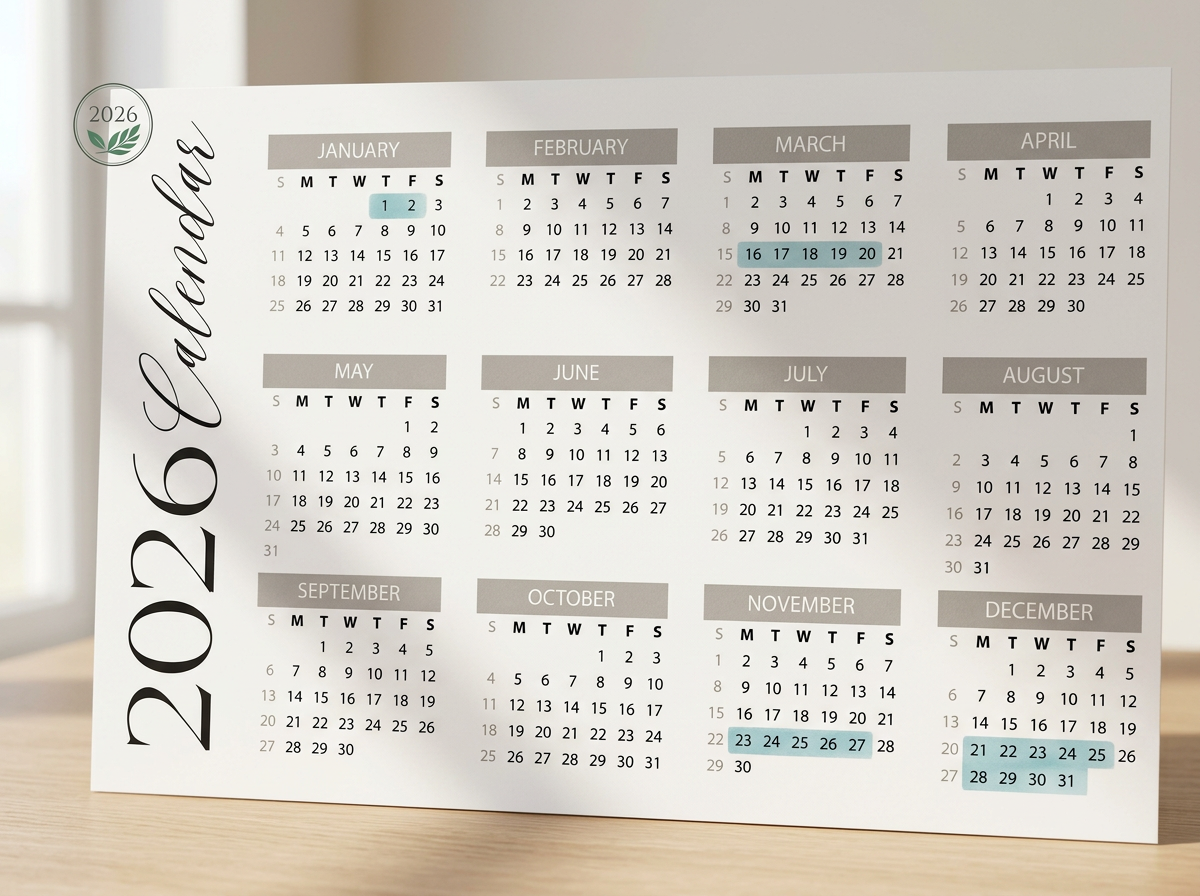
Yearly Calendar At A Glance
Planned Academy Closures
To support continued growth and high-quality instruction, The Academy will be closed during the following weeks for professional development:
March 16–20
November 23–27
December 21–January 1
All closure weeks are highlighted on the calendar.
Frequently Asked Questions
-
You can add a Member Portal icon to your phone’s Home Screen for quick access to your account!
For iPhone:
Open Safari and visit theazleacademy.opus1.io.
Tap the Share icon—the square with an arrow pointing up. Depending on your Safari layout, you may need to open the page menu first.
Scroll down and tap Add to Home Screen.
If Open as Web App appears, turn it on.
Tap Add.
If you don’t see Add to Home Screen, scroll to the bottom of the Share menu and tap Edit Actions to add it.
For Android:
Open Google Chrome and visit theazleacademy.opus1.io.
Tap the three dots beside the address bar.
Look for Add to Home screen or Install and create shortcut. If prompted, select Create shortcut.
Name the shortcut Azle Academy and tap Add. Follow any additional prompts to finish.
Once the icon appears on your Home Screen, tap it and log in to access your Member Portal.
-
Enter the email address associated with your Academy account, then select Get A Login Link by Email.
Check your email and open the login link within 30 minutes. This will sign you in without your password.
Once logged in, select Change Password. On a mobile device, open the three-line menu in the top-right corner to find this option.
Enter your new password, enter it again to confirm, and select Reset Password to save.
You can now use your new password to log in!
Didn't receive the email? Check your spam or junk folder and confirm you entered the email address on your account. If the link expires, repeat the steps above to request a new one. If you still need help, contact us at hello@theazleacademy.org.
-
Log in to your Member Portal.
On a mobile device, tap the three-line menu in the top-right corner.
Select Change Password.
Enter your new password, enter it again to confirm, and select Reset Password to save your changes.
Use your new password the next time you log in!
Forgot your password? Follow the instructions under “I forgot my Member Portal password. How do I reset it?”
-
Log in to your Member Portal and scroll below your profile information to see a list of your child’s upcoming lessons.
To find additional lessons or view past dates, select See All Schedule and use the calendar filters.
When you’re finished, select Back to profile in the top-right corner to return to your profile page.
-
Log in to your Member Portal.
On a mobile device, tap the three-line menu in the top-right corner.
Select Sync My Calendar.
Follow the prompts to add your child’s lesson schedule to your preferred calendar app.
-
If your child will miss a lesson, you can cancel it directly through your Member Portal!
Log in to your Member Portal.
Scroll to Upcoming Schedule and find the lesson your child will miss. Double-check the student’s name, date, and time.
Select Cancel next to that lesson.
Follow the prompts and confirm your cancellation.
Prefer to contact us? You can also call or text 817-270-6100 or email hello@theazleacademy.org. Please include your child’s name and the date and time of the lesson you need to cancel.
Telling your child’s teacher does not cancel the lesson. All cancellations must be submitted through the Member Portal or directly to the Academy office by phone, text, or email using the contact information above.
-
Private lessons canceled with at least 24 hours’ notice qualify for a makeup lesson credit. Credits expire 30 days from the original lesson date, and an active membership is required to redeem them. Cancellations with less than 24 hours’ notice do not qualify for a makeup credit.
Please note: Canceling an individual lesson does not cancel your child’s membership or stop monthly tuition.
-
Log in to your Member Portal.
Scroll below your child’s Upcoming Schedule to the Credits section.
Select See all credits to view all available credits.
Select Details under a credit to see more information about it.
To view past or inactive credits, turn off Show only active credit on the expanded credits page.
-
Find the credit you would like to redeem in the Credits section.
Select the blue Use button beneath that credit.
Follow the booking prompts to select an available lesson time and complete your booking.
After booking, check your child’s Upcoming Schedule to confirm the makeup lesson appears.
Please check your credit’s expiration date and schedule your makeup lesson promptly. An active membership is required to redeem makeup lesson credits.
-
Log in to your Member Portal.
Find the Comments section just above your child’s upcoming schedule.
Select the blue Leave a Comment button to send a message to your child’s teacher.
To view all messages, select Show More.
When your child’s teacher leaves a comment, you’ll also receive an email containing their message.
-
Your active subscriptions are the recurring lessons or classes your child is enrolled in.
Log in to your Member Portal.
Scroll below the Upcoming Schedule and Credits sections to find your active subscriptions.
Select See all subscriptions to view subscriptions for all children on your account and the details for each enrollment.
What does the red warning icon mean?
A red warning icon on a subscription card means its Terms and Conditions still need to be accepted. Select the blue Review / accept terms button to review and accept them.
-
Log in to your Member Portal.
Scroll below the Upcoming Schedule, Credits, and Subscriptions sections to find Invoices.
Select Details on an invoice to view its charges or download a PDF copy.
This section displays up to three open invoices. Select See all invoices to view additional invoices.
Do I need to pay my invoice manually?
Your monthly tuition is charged automatically using your default payment method on file. If you would like to pay an invoice early, select the Pay button on its invoice card.
-
Log in to your Member Portal and select the parent or guardian’s profile.
On a mobile device, tap the three-line menu in the top-right corner.
Select Payment and add your new card.
If you have more than one payment method saved, set the one you want to use for future payments as your default payment method.
Don’t see the payment option? Make sure you are viewing the parent or guardian’s profile. Payment methods do not appear under the student’s profile.